
How Light Lane works: from artwork to finished engrave
You have a design and a laser. Light Lane is the software in between. This page walks through every step, from the moment you open a file to the moment your engrave is done.
The five steps of every Light Lane job
Materials and designs change. The process stays the same.
- Step 1
Import your artwork
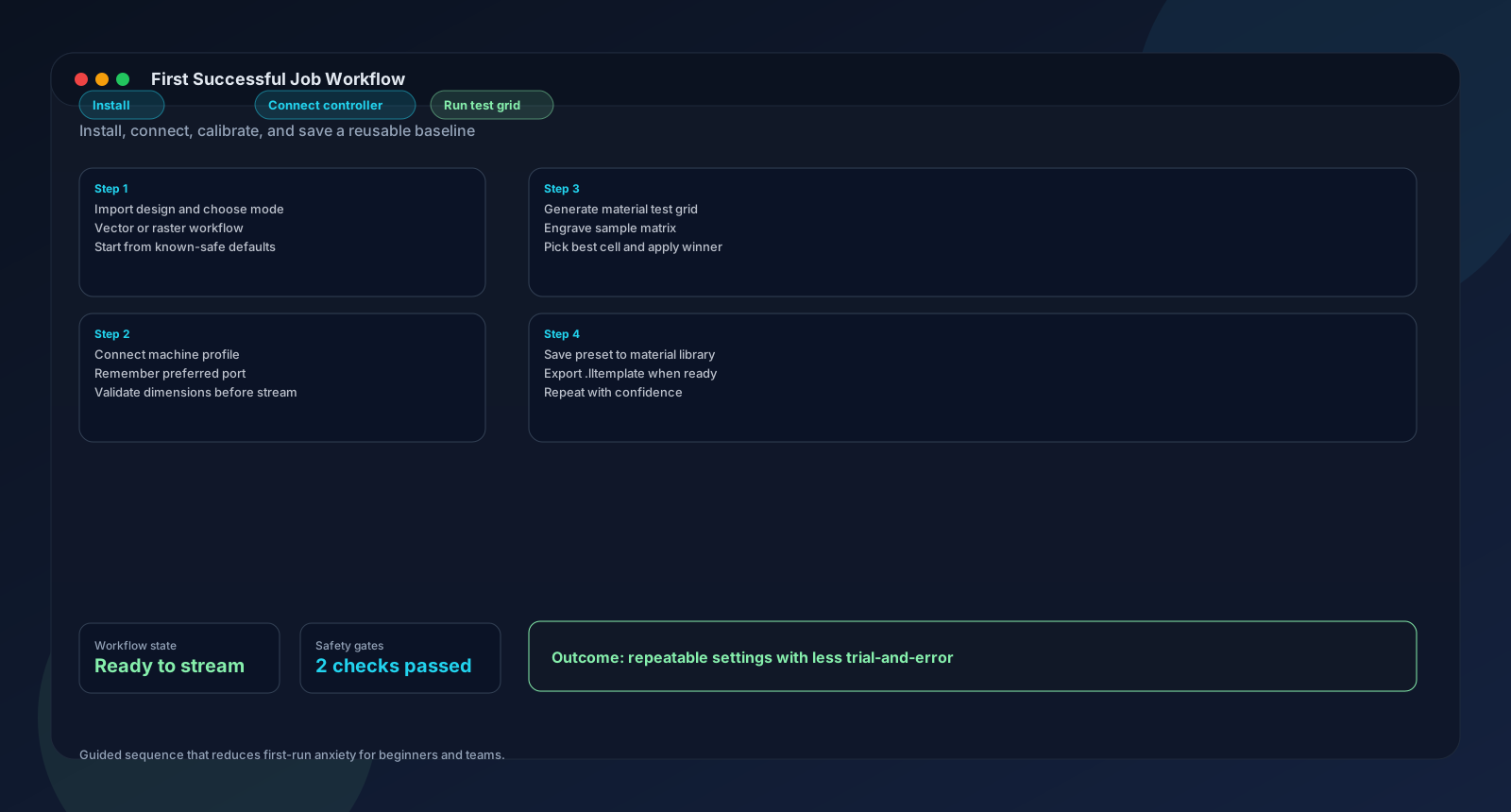
Drag a PNG, SVG, JPEG, or BMP onto the canvas, or use File, Open Image. SVGs preserve their internal layer structure, so you can show, hide, reposition, and scale individual elements. Need to create something from scratch? The built-in shape editor has 8 presets plus custom freeform drawing. There is also a text tool with 65+ system fonts and a barcode/QR code generator.
Why it matters: One workspace for everything. No switching between apps for basic layout work.
- Step 2
Pick a processing mode
Five modes, each for a different kind of output. Vector outline traces edges for cutting. Vector fill burns solid areas. Raster grayscale uses variable laser power for continuous-tone photos (requires M4 dynamic mode on your controller). Raster threshold converts to black and white at a brightness cutoff you set. Raster dither applies one of three algorithms for detailed images: Floyd-Steinberg, Atkinson, or Bayer. The right mode depends on what you are making. A photo on oak needs raster grayscale or raster dither. Cutting acrylic keychains needs vector outline.
Why it matters: The processing mode determines how Light Lane converts pixels and vectors into a toolpath.
- Step 3
Find your settings
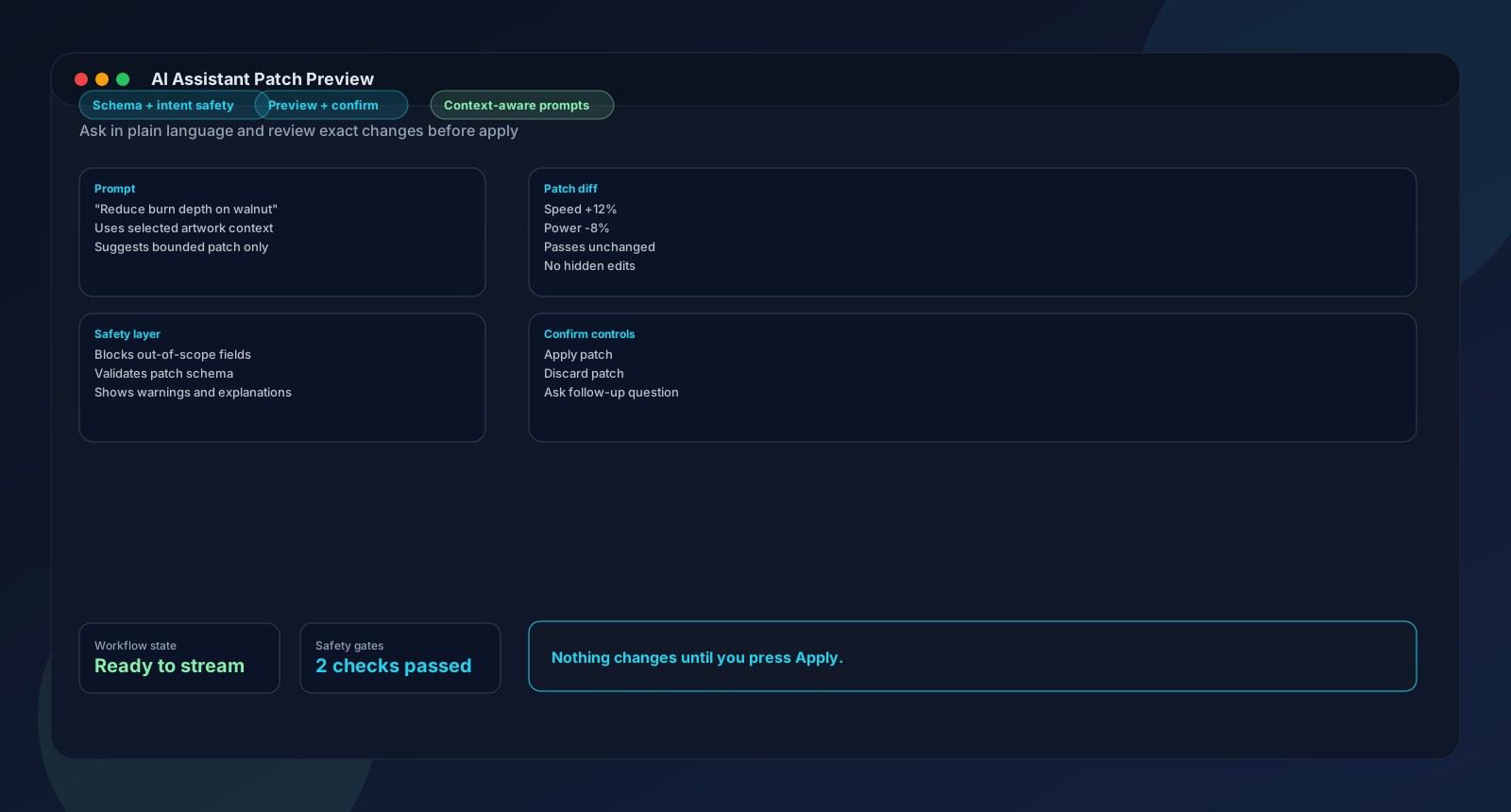
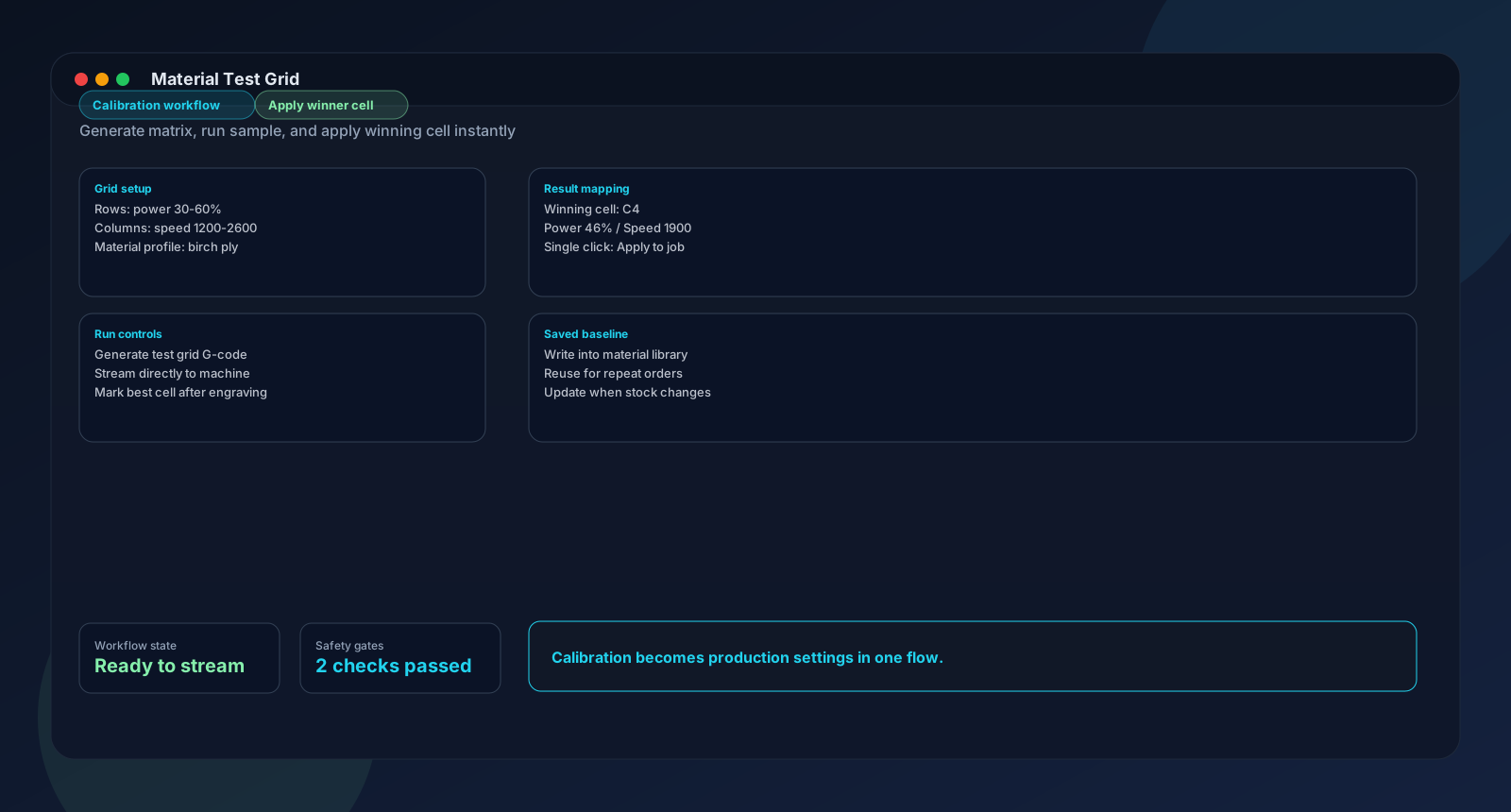
This is where Light Lane differs from most laser software. You have three options. Use one, combine them, or skip them all and set everything by hand. Material test grid: Burn a grid of up to 400 speed-and-power combinations on a scrap of your actual material. Pick the cell that looks cleanest. Those exact settings apply to your job instantly. No AI involved. Best for dialling in speed and power on a specific material. AI assistant: Select your image, type what you want ('reduce burn on walnut' or 'optimise this photo for oak'), and the AI analyses your image and proposes a settings patch. You see a before/after diff showing every change: Speed 1000 to 800, Power 80% to 65%. Hit Confirm to apply, or Dismiss to reject. You can tell it to leave speed and power alone if you already dialled those in with a test grid. Full AI: Describe what you want and let the AI suggest everything: speed, power, DPI, processing mode. Review the diff once, confirm, and generate. For when you want to get engraving fast without tuning each setting yourself.
Why it matters: You see every proposed change before the laser fires. Nothing applies until you say so.
- Step 4
Preview the toolpath
Click Generate and Light Lane creates the G-code for your controller. A colour-coded preview shows exactly what the laser will do. Yellow means low power, red means high. Check the estimated time. If something looks off, adjust your settings and regenerate. If your settings changed since you last generated, Light Lane flags it before you send.
Why it matters: The preview catches problems before they become wasted material or time.
- Step 5
Send to your laser
Click Send to Laser. Light Lane streams G-code line by line with real-time progress tracking. A live overlay shows your laser head's current position on the preview canvas. Estimated time remaining updates as it runs. If anything goes wrong, the emergency stop button halts the laser immediately with automatic recovery. For Ruida CO2 lasers, the process is similar but sends RD files via USB or Ethernet instead of streaming G-code directly.
Why it matters: You know where the laser is and how long is left at every moment.
After your first job
Once you have settings that work, save them. Store speed, power, and DPI in your material library so you can recall them for the same material next time. Light Lane ships with 17 built-in presets covering birch plywood, acrylic, leather, pine, oak, anodized aluminium, stainless steel, and more. Each preset includes starting settings for engraving and cutting. They are starting points, not guarantees. Your specific laser hardware (wattage, focal length, bed height) affects real-world results, which is exactly why the test grid exists.
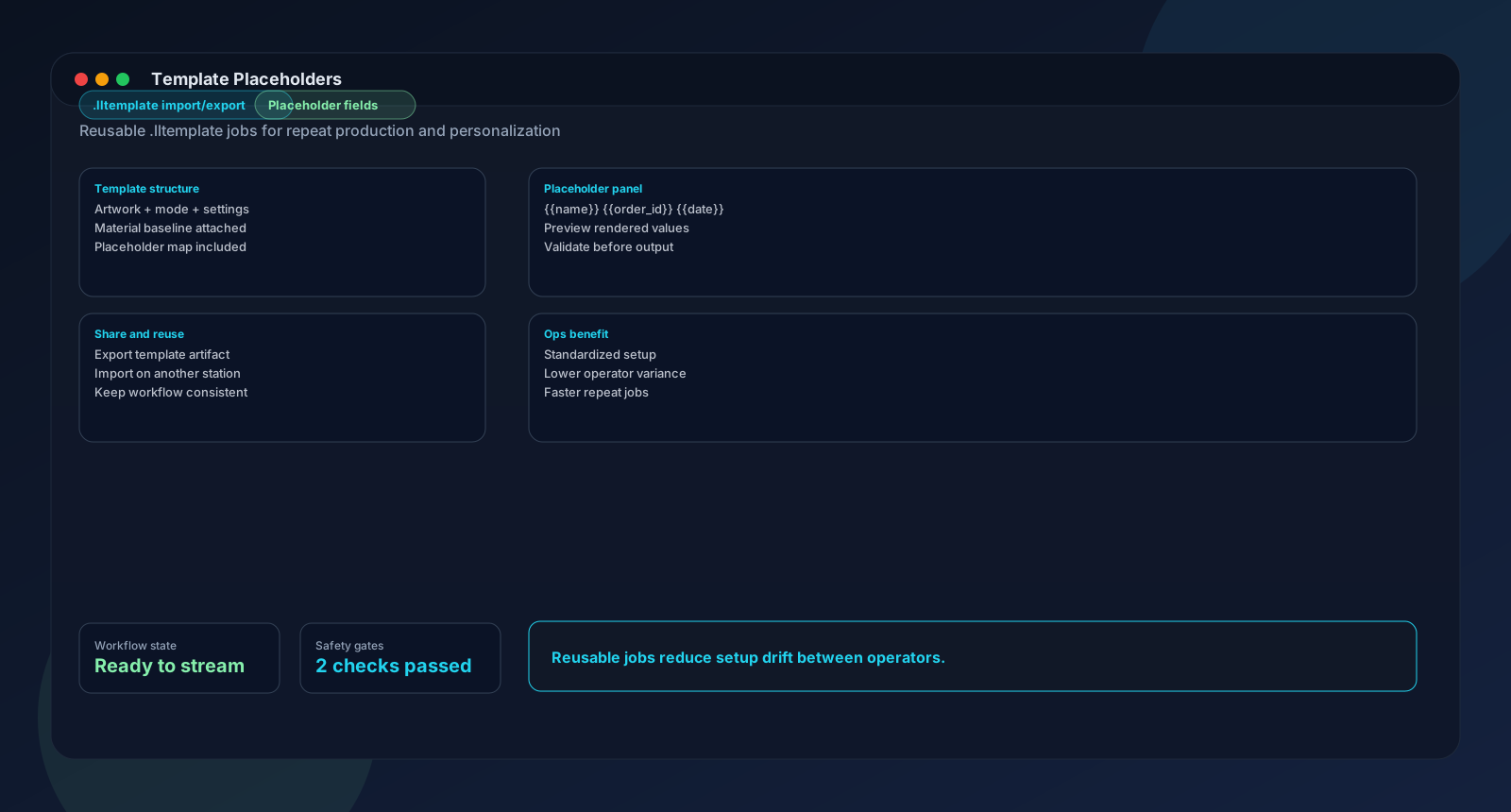
For repeat jobs, save the full layout as a .lltemplate file. Templates store placeholder positions, cut-line overlays, edge buffers, and material bindings. Load one next week and everything is exactly where you left it. Step and Repeat lets you fill an entire sheet with copies of a design: configurable rows, columns, and spacing.
Questions people ask before trying Light Lane
Honest answers to the hesitations we hear most.
What if I ruin material while learning?
Start with a small test grid on a scrap. A 5x5 grid on a piece of offcut MDF takes a few minutes and tests 25 speed-and-power combinations at once. If the best cell looks right, those settings go straight into your real job. You are not guessing, and you are not wasting good material.
I already use LightBurn. Why would I switch?
Light Lane has an AI assistant that analyses your image and proposes specific settings with a reviewable before/after diff. It also has a material test grid with a live engraving monitor where you click the winning cell to apply settings. LightBurn does not have either. But LightBurn has a full vector editor with bezier drawing and camera alignment. Light Lane does not. If you need those features, keep using them. You can try Light Lane free for 14 days and compare on the same job.
Does it work with my laser?
If your laser uses a GRBL, Marlin, or Smoothieware controller over USB, yes. Light Lane auto-detects the controller and generates firmware-specific G-code. Ruida CO2 controllers are supported in beta via a separate free helper binary that you download from our website. Check the controller pages for your specific setup.
Can I use it without internet?
Everything except the AI assistant works offline. Import, edit, generate G-code, stream to your laser, save presets, export templates and G-code files. Licence activation supports a full air-gapped flow with device codes and activation packages for restricted environments.
Technical questions about the process
What file formats does Light Lane accept?
PNG, JPEG, BMP, and SVG. SVGs preserve their layer structure so you can edit individual elements. Light Lane does not import DXF, AI, PDF, or EPS. Export from your design tool as SVG or PNG.
How does the toolpath preview work?
Light Lane generates G-code from your image and renders it as a colour-coded overlay on the canvas. Yellow is low power, red is high power. Preview resolution goes up to 3200x3200 pixels at Ultra quality. The preview also shows estimated engraving time, factoring in your repeat count if you are running multiple passes.
What is the difference between the five processing modes?
Vector outline traces edges for cutting or scoring. Vector fill burns solid areas with horizontal scanlines. Raster grayscale varies laser power per pixel for continuous-tone output (GRBL M4 dynamic mode only). Raster threshold converts to binary black/white at a configurable brightness cutoff. Raster dither uses Floyd-Steinberg, Atkinson, or Bayer algorithms for detailed images where you want texture and tonal range.
Can I try the full process without paying?
Yes. The 14-day free trial gives you full Pro features. Download, sign up, connect your laser, and run real jobs on real material. When the trial ends, the app locks until you subscribe. Maker is $12/month, Pro is $24/month.
Which controllers does Light Lane support?
GRBL is fully supported with auto-detection at 115200 baud, $30/$31 power scaling, M4 dynamic laser mode, and character-counting streaming. Marlin and Smoothieware ship with auto-detection and firmware-specific G-code. Ruida CO2 controllers work in beta via a separate helper binary (free download from our website) over USB or Ethernet.
See for yourself
14-day free trial with full Pro features. No credit card. macOS and Windows.
Next steps
Validate one real workflow in Light Lane, then move to the most relevant guide or feature page.
Last updated February 20, 2026